Follow these step-by-step instructions to edit your ads / flyers / banking details easily. Rather use a computer to edit these files, it’s much more difficult to edit them correctly when using a phone.
All templates are available to download and edit and may only be used while you are an agent of this group. PLEASE DO NOT SHARE THE FILES.
You will need Microsoft Powerpoint to edit the templates.
It’s best to use a computer, but you can download the Powerpoint app on your phone and use that as well.


Where to find the templates?
Go to the All Options / Website Menu page and click on “Downloads & Templates” in the pink section.
There is a button located at the bottom of all pages on the website named “All Options / Website Menu”.
On the Downloads & Templates page, scroll down to find the section named “Edit the templates here”. Now follow the steps to install the font used. If the font is already installed on your device, skip to the editing steps.
Installing the font/s
Go to the section named “Fonts used” to download the fonts (or click on the Dropbox icon below to view the folder containing the fonts).

Right-click on the font, then on install (or install for all users). Or open the font file and then click on “Install” (screenshot below). The font will now be visible in your list of fonts in Powerpoint. You may have to close Powerpoint and open it again to refresh the fonts.

Editing the template
The template file you downloaded will be shown at the bottom of the screen (to go to where your downloaded files are saved on your device). Click on it to open the file. Microsoft Powerpoint will open.
Once the file is open in Powerpoint, click on “Enable editing” at the top.

Type your name and surname, phone number and e-mail address into the space provided for each. Note that everything is grouped (do not ungroup it), click on each section to edit it.
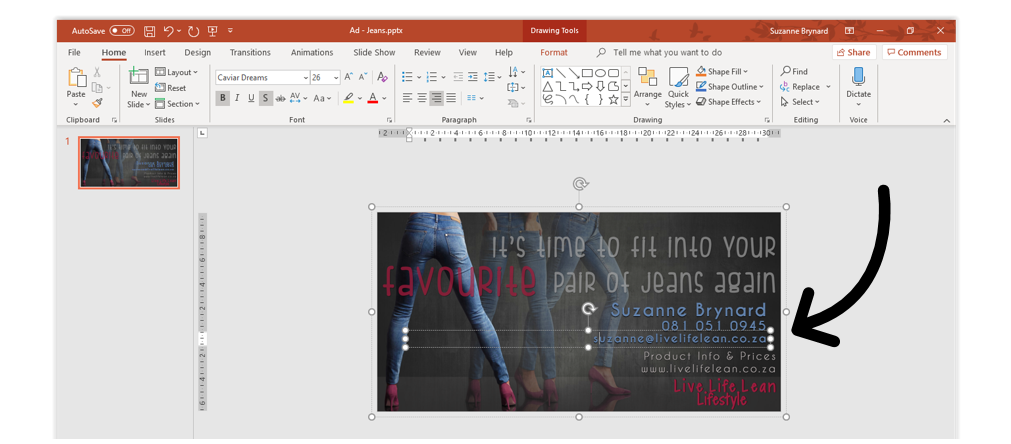
Left-click anywhere on the grey area outside of the picture, then left-click anywhere on the picture (only once). Then right-click on the border line (as shown below) and click on “Save as Picture”.

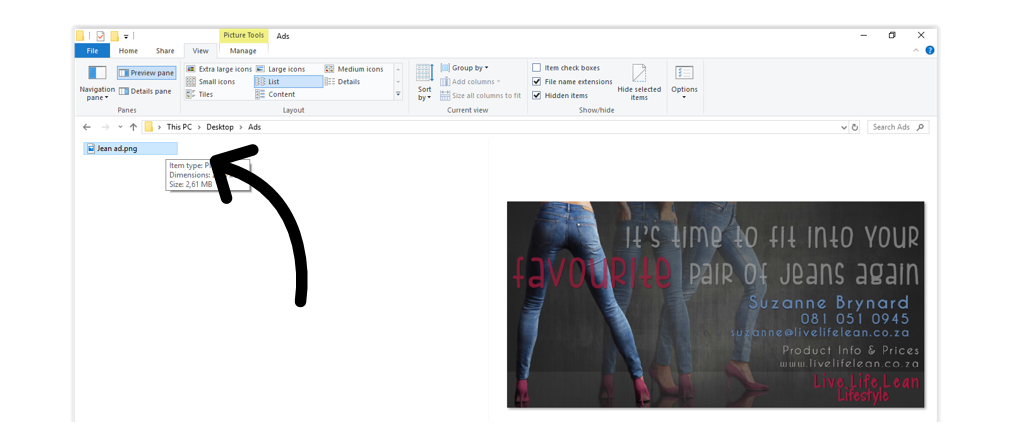
Give your picture a name and select file type PNG or JPEG (do not save this file as a PDF) and click on save.

Go to the folder where you saved your picture to view it.
AND YOU’RE DONE!
Now you can post your new ad to social media.
Keep this in mind when posting your ads:
The rectangle ads are sized to be used with 2 square pictures (like our before and after photos). The ad should be added as the 1st picture (you can move the pictures before posting), followed by the two square pics. Find Before and After pics on the Testimonials page and use them together with your ads.
This way everything will line up perfectly and all details are visible.

Some agents add the pictures randomly and then the post looks scrambled and unprofessional.
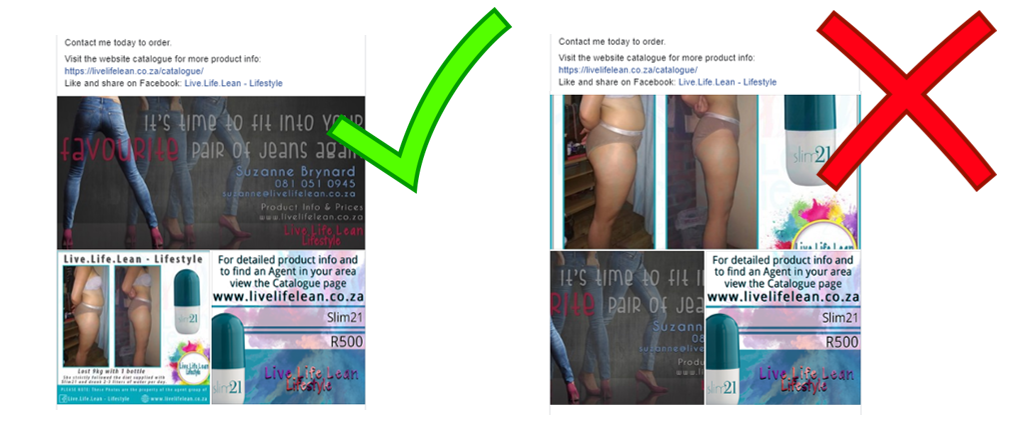
Example of an ad post you can use:
Contact me today to order.
Phone: (add your number)
e-mail: (add your e-mail address)
Visit the website catalogue for more product info and to search for an agent in your area: https://livelifelean.co.za/catalogue/
Like and share on Facebook: @Live.Life.Lean – Lifestyle
